
How to Run a Consulting Engagement from Kickoff to Invoice
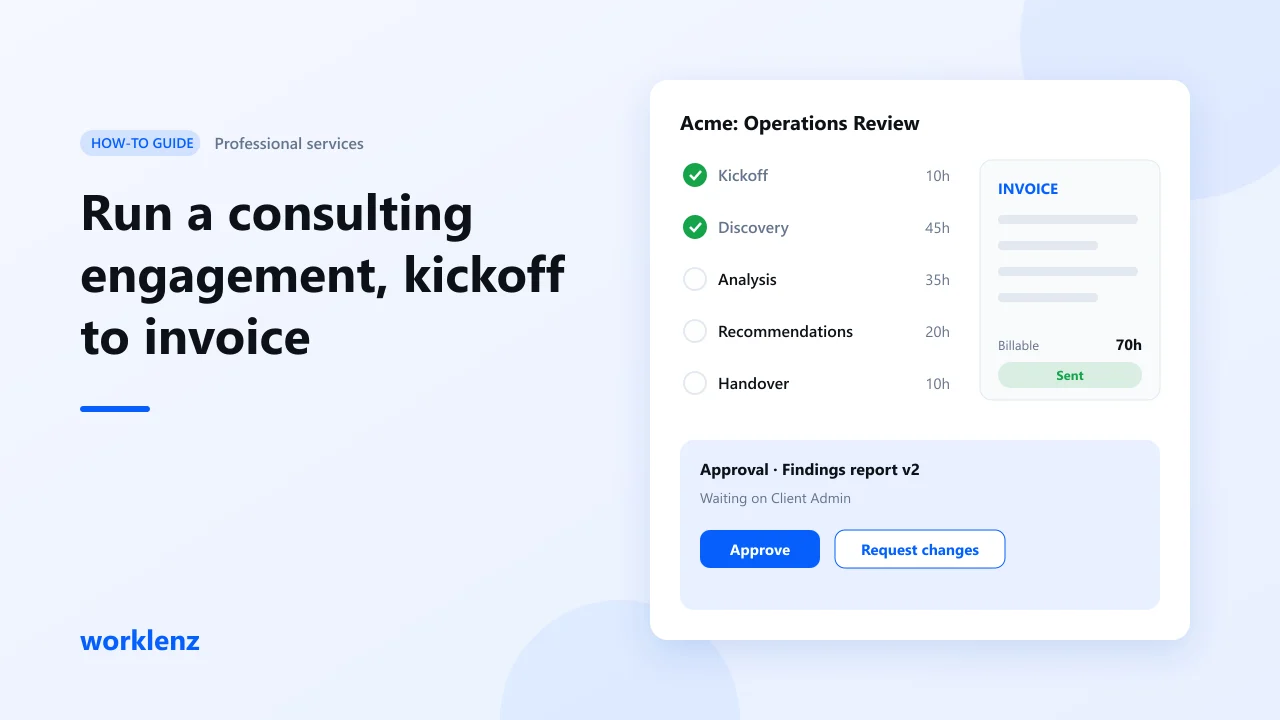
A consulting engagement has four moving parts: the scope you agreed, the hours you spend, the client’s sign-offs and the invoice. If they live in four places, scope creep goes unbilled. In Worklenz you run all four in one project: phases for the scope, a rate card for the hours, the client portal for sign-offs and client invoices at the end. The full setup needs the Business plan.
What you’ll set up
| Step | Worklenz feature |
|---|---|
| 1. Create the engagement | Services & Consulting template |
| 2. Map the scope to phases | Phases, tasks, estimates |
| 3. Price the hours | Rate card, per-project member rates |
| 4. Track time | Timer, manual logs, billable flag |
| 5. Watch the budget | Finance tab |
| 6. Get sign-off | Client portal approvals |
| 7. Handle scope changes | Client portal change requests |
| 8. Bill | Billable work report, client invoices |
Before you start
- Have ready: the signed statement of work, the fee (fixed or time-and-materials), the team and their rates.
- Example used here: a 6-week operations review for a mid-size client, time-and-materials, estimated at 120 hours.
Step 1: Create the project from the Services & Consulting template
Go to Projects → Create Project and pick Services & Consulting. Rename it after the client and engagement (“Acme: Operations Review”). Adjust the template’s phases and tasks to match your statement of work.
Step 2: Map the scope to phases
Turn each section of the statement of work into a phase, and each deliverable into a task with an estimate.
| Phase | Deliverables | Estimate |
|---|---|---|
| Kickoff | Kickoff workshop, stakeholder list, data request | 10 h |
| Discovery | Interviews (8), process mapping | 45 h |
| Analysis | Findings, options, cost model | 35 h |
| Recommendations | Report, presentation | 20 h |
| Handover | Final workshop, implementation plan | 10 h |
The total (120 h) should match your proposal. If it doesn’t, fix the proposal or the plan now.
Step 3: Set rates before anyone logs time
Open the Rate Card tab. Use your organization’s rate card (Partner, Senior Consultant, Analyst) or set rates for each person on this project. Without rates, time cost shows as zero and the Finance tab can’t tell you anything.
Step 4: Track every hour, billable or not
Consultants log time against tasks with the timer or manually. Client work is billable. Internal reviews, travel you don’t bill and rework are non-billable. Honest non-billable time is how you learn where engagements leak.
Step 5: Watch budget vs actual weekly
Enter the engagement fee as the budget in the Finance tab. Each week, compare budget used with phase progress. If Discovery has used 60% of its hours with half the interviews done, raise it with the client now.
Step 6: Get sign-off in the client portal
Invite the client’s sponsor as a Client Admin. Share the tasks and files they need to see and keep internal working notes private. Use Preview as client to check before you send the invite.
At the end of each phase, create an approval (for example, “Findings report v2”). Only a Client Admin can approve or request changes, and the decision is recorded with who made it and when. No more “I thought you’d agreed” emails.
Step 7: Log scope changes as change requests
When the client asks for “one more site visit”, ask them to submit it as a change request in the portal. You get a record of what was asked, when, and its status. Add the extra work as new tasks with estimates, so it’s tracked and billed.
Step 8: Invoice from the billable hours
Run the billable work report for the period to see billable hours by person and task. Create the client invoice in Worklenz, send it and download a copy for your books. When the client pays, mark it paid or record the payment manually. (Clients can’t pay online through Worklenz today.)
Worked example
| Week 4 snapshot | |
|---|---|
| Hours estimated | 120 h |
| Hours logged | 78 h (70 billable, 8 non-billable) |
| Phases done | Kickoff, Discovery |
| Change requests | 1 approved: extra site visit, +8 h |
You’re on track for hours, and the extra site visit is approved, tracked and billable instead of absorbed.
Common mistakes
- Scope in the PDF, not the plan. If deliverables aren’t tasks with estimates, you can’t see overruns.
- Verbal scope changes. Use change requests.
- Rates added at invoice time. Set them on day one.
Checklist
- Statement of work mapped to phases and estimated tasks
- Rate card set
- Billable / non-billable time logged weekly
- Client Admin invited and portal view previewed
- Approval created at the end of each phase
- Scope changes logged as change requests
- Invoice created from billable work
FAQ
Does this work for fixed-fee engagements?
Can the client see our hours?
Which plan do I need?
Run your next engagement in one place.
Start a 14-day Business trialRelated: Services & Consulting template · PSA software · How to track a project budget vs actual