
How to Control Who Creates and Assigns Tasks
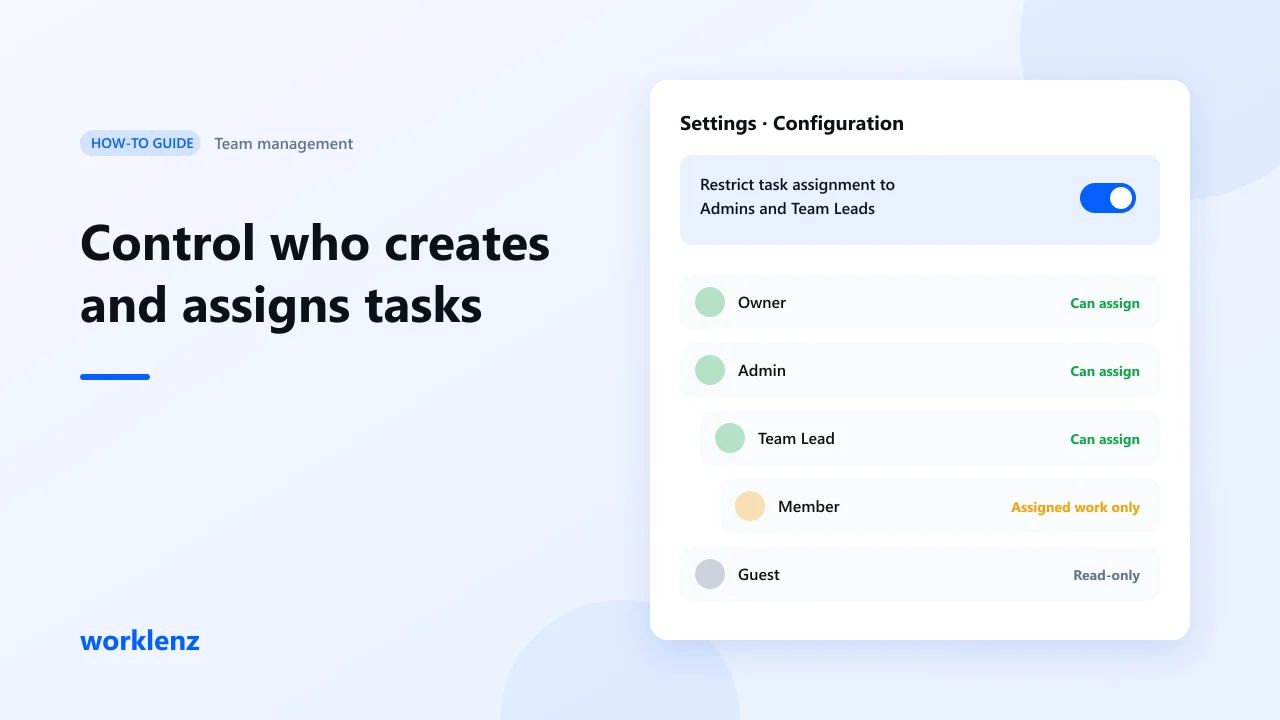
To control who can create and assign tasks, give everyone the right role, put members under Team Leads, then turn on Restrict task assignment to Admins and Team Leads. Members can still work on what’s assigned to them; they just can’t hand out new work. Roles work on every plan; the restriction setting needs Business.
When you need this
In a team of four, anyone assigning anything is fine. Around ten people, it starts to hurt:
- a designer gets tasks from three people and doesn’t know which comes first
- clients’ requests get logged as tasks by whoever picked up the email
- nobody can say who agreed to a piece of work
The fix isn’t fewer tasks. It’s a clear rule for who decides.
What you’ll set up
| Step | Worklenz feature |
|---|---|
| 1. Give everyone a role | Owner, Admin, Team Lead, Project Manager, Member, Guest |
| 2. Build reporting lines | Team Lead assignment, Bulk Assign Team Lead |
| 3. Decide who assigns work | “Restrict task assignment to Admins and Team Leads” |
| 4. Focus members on their work | “Show only assigned tasks to members” (project setting) |
| 5. Bring in outsiders safely | Guests |
Step 1: Give everyone the right role
| Role | Use it for | Can they assign work? |
|---|---|---|
| Owner | Account owner | Yes |
| Admin | Ops lead, agency director | Yes |
| Team Lead | Leads a group of members | Yes |
| Project Manager | Runs specific projects | Manages their projects |
| Member | Does the work | Yes by default; no when the restriction is on |
| Guest | Freelancer, contractor, partner | Read-only |
Change a role from the team members list in Settings.
Step 2: Put members under Team Leads
Each member can report to a Team Lead. Open the team members settings, pick a member and choose Assign Team Lead. For a whole group, use Bulk Assign Team Lead: choose the lead, tick the members and check the Assignment Preview before you confirm.
The team hierarchy view then shows reporting lines, each lead’s coverage and unassigned members, the people who don’t report to anyone yet. Clear that list first.
Step 3: Restrict who can create and assign tasks
In Settings → Configuration, turn on Restrict task assignment to Admins and Team Leads.
With it on:
- only Admins and Team Leads can create and assign tasks across all projects
- Members view and work on the tasks assigned to them
A project can override the organization setting, so you can keep one internal project open to everyone (for example, an ideas board) while client projects stay restricted.
Step 4: Show members only their own tasks
On a busy project, a member doesn’t need to scroll past 200 tasks. In the project’s settings, turn on Show only assigned tasks to members. Members then see only tasks assigned to them. Owners, Admins, Team Leads, Project Managers and Guests still see everything.
Use it on large projects. Leave it off on small teams where seeing each other’s work helps.
Step 5: Add freelancers as guests
Invite a contractor as a Guest. Guests get read-only access to the project tabs they need, such as Task List, Board, Members, Roadmap and Workload. They can’t change your plan or see Finance.
Pro includes 3 guests per project; Business has unlimited guests.
A simple setup for a 15-person agency
| Who | Role | Reports to |
|---|---|---|
| Founder | Owner | — |
| Ops lead | Admin | — |
| Design lead, Dev lead | Team Lead | Ops lead |
| 4 designers | Member | Design lead |
| 5 developers | Member | Dev lead |
| 2 account managers | Project Manager | Ops lead |
| Freelance copywriter | Guest | — |
Turn on the restriction. Now every new task comes from a lead or account manager, and each member knows exactly where their work comes from.
Common mistakes
- Turning on the restriction before you have Team Leads. Members will be stuck waiting. Set up leads first.
- Making everyone an Admin to avoid permission questions. You lose the point of roles.
- Leaving members unassigned. Check the unassigned list after every new hire.
Checklist
- Every person has the right role
- Every member reports to a Team Lead
- Restriction turned on (Business) once leads are in place
- Large projects show members only their own tasks
- Contractors added as guests, not members
FAQ
Can members still log time and comment when the restriction is on?
Can I restrict one project but not others?
Which plan do I need?
Set clear rules for who assigns work.
Start a 14-day Business trialRelated: Agency management software · Scaling your agency from 5 to 50 people