
How to Plan an Event Step by Step and Reuse the Plan
To plan an event without the last-minute panic, list every task, put them in the right order, give each one an owner, and keep the client updated from the same plan. In Worklenz you can build that plan once, save it as a template and reuse it for every workshop, launch or meetup. Planning works on the Free plan; saving your own template needs Pro, and sharing progress with a client needs Business.
What you’ll set up
| Step | Worklenz feature |
|---|---|
| 1. List the work | Blank project, Task List |
| 2. See progress at a glance | Board view |
| 3. Make the board easy to scan | Labels, priorities |
| 4. Put tasks in order | Task dependencies |
| 5. Assign faster | Bulk actions |
| 6. Automate repeat work | Recurring tasks |
| 7. Reuse the plan | Save as template |
| 8. Share with the client | Client portal, client-visible tasks |
| 9. Review the results | Time tracking and reports |
Before you start
- Have ready: the event goal, rough budget, date range and the people helping.
- Example used here: a one-day customer workshop for about 80 guests.
Step 1: Start a blank project and list the work
Worklenz has built-in templates (Marketing, Nonprofit, Education and more), but none is built for events. Start with a blank project so the plan matches your event exactly.
A workshop usually needs about ten tasks:
- Set the event goal and audience
- Set the budget
- Choose the date and venue
- Book the venue and vendors
- Design posters and social posts
- Send invitations
- Prepare the event schedule
- Set up guest registration
- Collect feedback
- Share the event report and photos
Add a due date and an owner to each one as you go.
Step 2: Track progress on the board
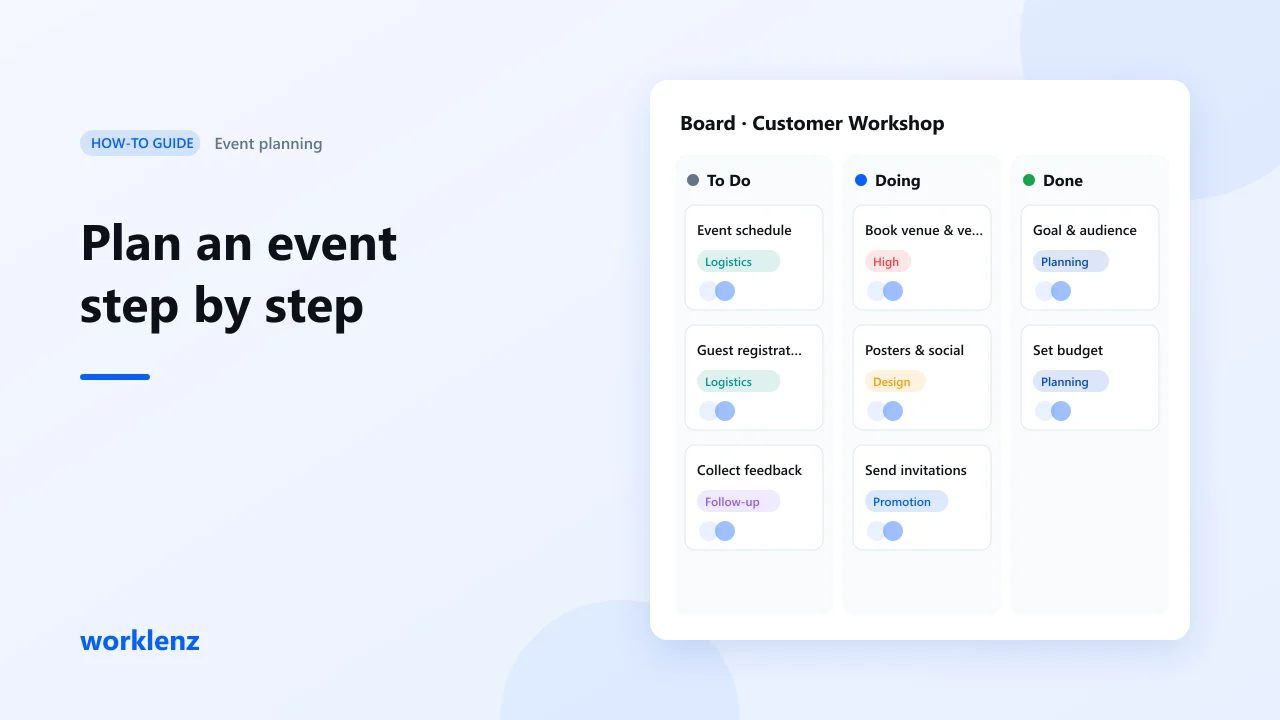
Switch to the Board view. Tasks are grouped by status: To Do, Doing and Done. Halfway through planning, a healthy board might look like this:
| To Do | Doing | Done |
|---|---|---|
| Event schedule, Registration, Feedback, Report | Book venue and vendors, Posters, Invitations | Goal and audience, Budget, Date and venue |
One look tells you what’s finished, what’s moving and what hasn’t started.
Step 3: Add labels and priorities
Labels make a busy board easy to scan. Six are enough for most events:
| Label | Use it for |
|---|---|
| Planning | Goal, budget, date |
| Logistics | Venue, vendors, registration |
| Design | Posters, social posts |
| Promotion | Invitations, announcements |
| Urgent | Anything close to its deadline |
| Follow-up | Feedback, final report |
A task can have more than one label. “Choose the date and venue” is both Planning and Logistics.
Set priorities too. “Book the venue and vendors” is High, because nothing else can move until it’s done.
Step 4: Put tasks in the right order with dependencies
You shouldn’t send invitations before the venue is confirmed. Open “Send invitations”, go to Dependencies and add “Book the venue and vendors” as Blocked By. Worklenz then warns anyone who tries to close the invitation task while the venue task is still open.
Good dependencies for an event:
- Send invitations → blocked by Book the venue
- Design posters → blocked by Choose the date and venue
- Share the event report → blocked by Collect feedback
Step 5: Assign and label in bulk
Select several tasks in the list and update them together: assign a person, add a label or change the status. For example, select every design task and add the Design label in one go.
Step 6: Automate repeat work with recurring tasks
Weekly vendor check-ins and reminder posts repeat on a schedule. Make them recurring tasks and Worklenz creates each one for you, so nobody has to remember.
Step 7: Save the project as a template
Once the plan works, save the project as a template. Next time, create a new project from it and you get the same tasks, labels and structure in seconds. You only change the dates and names. If you run events often, this is the step that saves the most time.
Step 8: Share progress with your client, not your vendor deals
The client portal works on one rule: every task is internal until you choose to share it. On the project’s Tasks page you’ll see a client-visible toggle next to each task, with three filters: All, Client visible and Internal only.
For the workshop, share the tasks the client cares about (goal and audience, the schedule, posters, invitations, the report) and keep vendor bookings internal.
Before you invite anyone, click Preview as client. You’ll see exactly what they’ll see: shared tasks with simple statuses such as Not started, In progress and Done. A staff-only panel lists what stays hidden (internal tasks, files, milestones and draft approvals). The client never sees that panel.
A client with the Client Admin role can comment in discussions, upload files where the project allows it, submit change requests and approve items. Approvals and change requests stay on record instead of getting lost in chat.
Step 9: Track time and review
Log time on tasks during the event, then open the time report to compare estimated and actual hours. Next time, adjust the estimates in your template.
Common mistakes
- Promoting before the venue is booked. Use dependencies.
- Sharing the whole project with the client. Share task by task, and preview first.
- Rebuilding the plan every time. Save it as a template after the first event.
Checklist
- Every task has an owner and a due date
- Labels and priorities set
- Dependencies added for tasks that must wait
- Recurring check-ins set up
- Project saved as a template
- Client-visible tasks chosen and checked with Preview as client
FAQ
Is there a built-in event template?
Can my client edit tasks?
Do I need a paid plan?
Plan your next event in Worklenz.
Create a free accountRelated: Event planning template · Client portal · Templates gallery