
How to Manage a Client Campaign and Its Profit in One Place
Most small agencies keep tasks in one tool, hours in another and money in a spreadsheet. That makes one simple question hard to answer: did this project make money? This guide shows how to run a client campaign in one Worklenz project, from the first task to the profit number. You need the Business plan for the finance and client portal steps; the task and time steps work on Pro.
What you’ll set up
| Step | Worklenz feature |
|---|---|
| 1. Create the project | Built-in Marketing template |
| 2. Set up your team structure | Departments, practices, job titles |
| 3. Invite people with the right role | Roles: Admin, Team Lead, Member, Guest |
| 4. Run the work | Task List and Board |
| 5. Log time, billable and non-billable | Task timer, manual time logs |
| 6. Set rates | Rate Card tab |
| 7. Read the profit | Finance tab, Finance Overview |
| 8. Get client approvals | Client portal |
Before you start
- Plan: start a 14-day trial of Business (no credit card) if you want to follow every step.
- Have ready: the client’s budget, the people on the job and their hourly cost or billing rate.
- Example used here: a product launch campaign for a retail client, with a budget of $6,000.
Step 1: Create the project from the Marketing template
Go to Projects → Create Project, open the templates and pick Marketing. Worklenz copies a ready-made structure into the new project: statuses (To Do, Doing, Done), labels such as Campaign management and Email marketing, and phases.
One thing to know: template tasks arrive without due dates or assignees. Go through the list once and add dates, priorities and owners before you invite anyone. A template gives you structure, not a schedule.
Step 2: Set up departments, practices and job titles
Before you invite people, open Settings and add your departments, practices and job titles. It takes five minutes and pays off later: the same fields show up as filters in the time reports, so you can see hours by practice, not just by person.
Step 3: Invite people with the right role
Inviting someone is one dialog: type an email, pick a role, send. The role decides what they see.
| Role | Typical person | What they see |
|---|---|---|
| Owner / Admin | Agency owner, ops lead | Everything, including Finance |
| Team Lead | Account or project lead | Their team’s work, no Finance tab |
| Member | Designer, copywriter | Their projects and tasks |
| Guest | Freelancer or partner | Read-only project tabs |
Keep Finance with the owner and admins. Team leads need to run the work, not see margins.
Step 4: Run the work on the board
Switch between the Task List and the Board. On the board, drag cards from To Do to Doing to Done. Each card shows its label, priority, due date and assignees, so a stand-up takes two minutes instead of fifteen.
Step 5: Log time on every task
Start the timer on a task, or add time manually after the fact. Mark each entry billable or non-billable. Internal meetings and rework are usually non-billable; client work is billable.
Logged time feeds the home dashboard and the reports. The Members Time Sheet shows logged time against expected capacity, and the Projects Time Sheet shows hours per project. If you bill by the hour, this split is what makes your invoice easy to defend.
Step 6: Add a rate card before you trust the numbers
This is the step people skip. In the project, open the Rate Card tab (next to Finance) and set an hourly rate per job role. You can use your organization’s rate card or set rates for each member on this project.
Why it matters: time-based cost is zero until rates exist. In a hands-on test, 1h 23m of logged time showed a time cost of 0.00 until a rate card was added. Set rates on day one, not at the end.
Step 7: Read the Finance tab
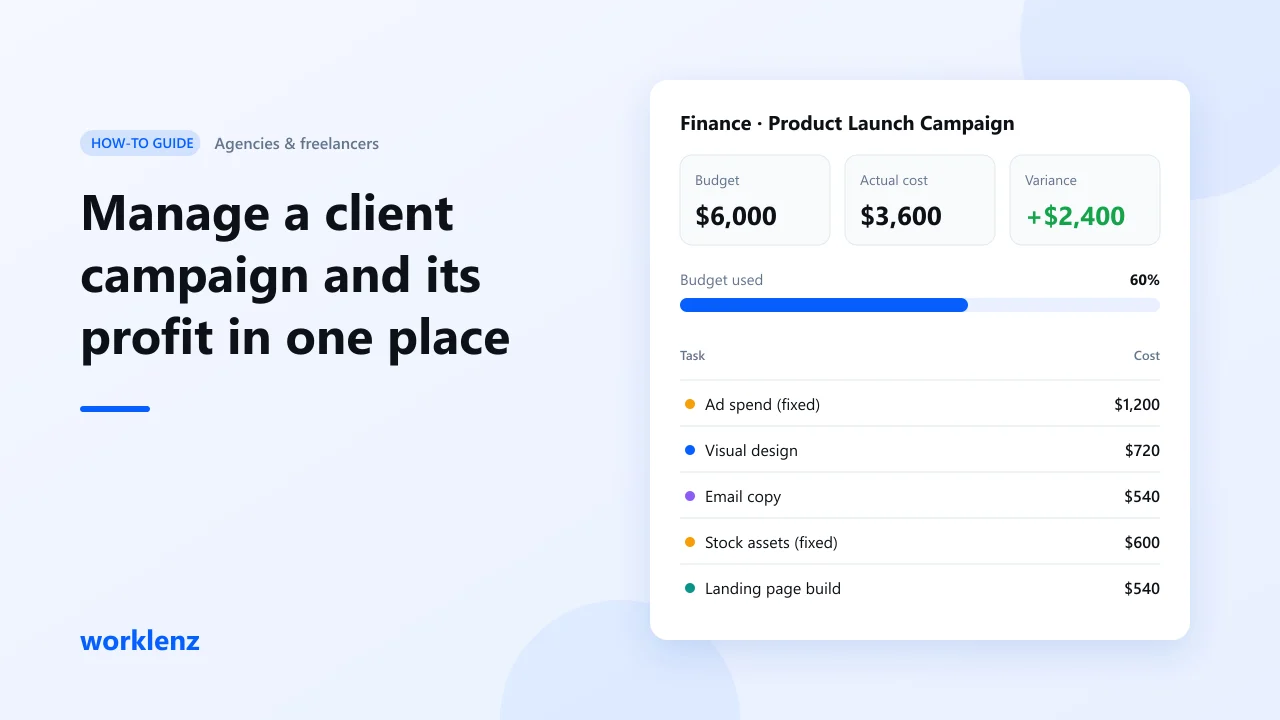
Open the Finance tab. It shows:
- the project budget
- total actual cost, split into fixed costs and time-based cost
- variance (budget minus actual) and budget used, as a percentage
- remaining budget
- a per-task cost table
Add fixed costs for anything that isn’t time: ad spend, stock photos, a printer’s quote.
For the agency view, open Finance Overview. It rolls up every project into one place and handles more than one currency, which helps if your clients pay in different currencies. You can export the data when your accountant asks for it.
Step 8: Get client approvals in the portal
Invite the client to the client portal. They get an email invitation and sign in with a one-time code sent to their email, so there’s no password to forget.
In the portal, the client sees their projects, milestones, discussions, approvals and change requests. Create an approval request (for example, “Final launch visuals”) and it waits on their Approvals page until a Client Admin approves it or asks for changes. Use Preview as client first to check what they’ll see. Internal tasks, files and draft approvals stay hidden.
Worked example
| Item | Amount |
|---|---|
| Budget | $6,000 |
| Fixed costs (ad spend, stock assets) | $1,800 |
| Time cost: 40 h at a $45 average rate | $1,800 |
| Actual cost | $3,600 |
| Variance | +$2,400 (60% of budget used) |
If 60% of the budget is gone and only 40% of the tasks are done, you know in week two, not after the invoice. Talk to the client about scope while you still have options.
Common mistakes
- No rate card. Time cost stays at zero and the project looks more profitable than it is.
- Everything billable. Mark internal time non-billable, or your effective rate will look wrong.
- Template used as is. Template tasks have no dates. Add them before you share the plan.
- Finance visible to everyone. Keep it with owners and admins.
Checklist
- Project created from the Marketing template, with dates and owners added
- Departments, practices and job titles set
- Every person invited with the right role
- Rate card set before the first time entry
- Budget and fixed costs entered in Finance
- Client invited to the portal, view checked with Preview as client
FAQ
Does Worklenz replace my accounting software?
Can clients pay invoices online in Worklenz?
Which plan do I need?
Can I reuse this setup for the next client?
Related: Marketing template · Client portal · Project finance · How to track billable hours