Iniciar sesión
Back to changelog
v3.3 Latest

Client Portal v2, Team Time Entries & Fixes

New Improvement Fix
Worklenz Client Portal v2, Team Time Entries & Fixes release screenshot

Sprint 21 rebuilds the Client Portal around item-level sharing, with approvals, change requests, discussions, milestones, and three client roles. It also adds role-based Time Entries with grouping and CSV export, a workspace-level Audit Log, a portfolio progress view, Project Docs, a Software project type, and Polish and French languages. 23 improvements and 70+ fixes cover members, templates, dark mode, real-time updates, and reports.

Features

Client Portal v2 (Admin)

  • Share only what you choose with clients
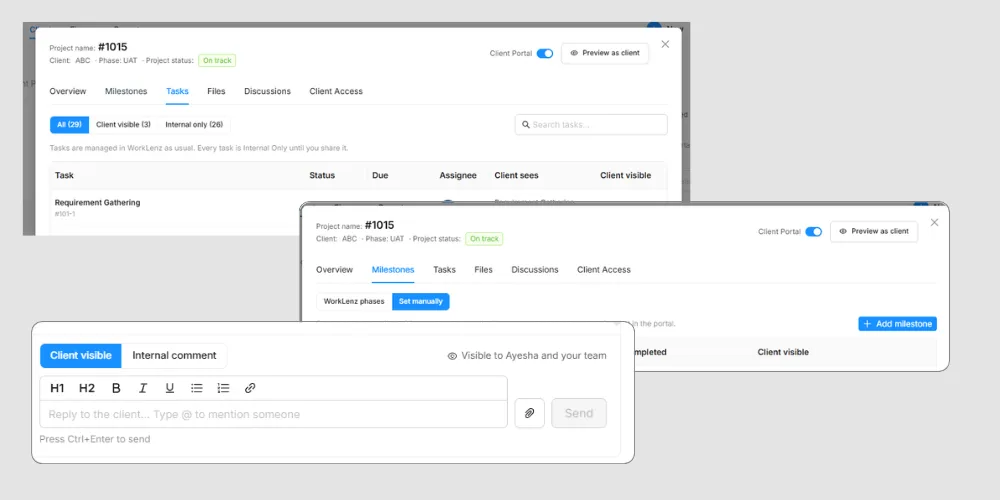
    Every task, file, milestone, and comment starts as Internal Only and appears in the portal only after a team member marks it Client Visible. Shared tasks can carry a separate client-facing title and description, so internal task names stay private.
    Share only what you choose with clients
    How to use:
    1. Open Clients and go to Portal Projects
    2. Turn on the Client Portal for a project and open its workspace
    3. In the Tasks tab, switch a task to Client Visible and review what the client will see in the side drawer
  • Portal Projects workspace
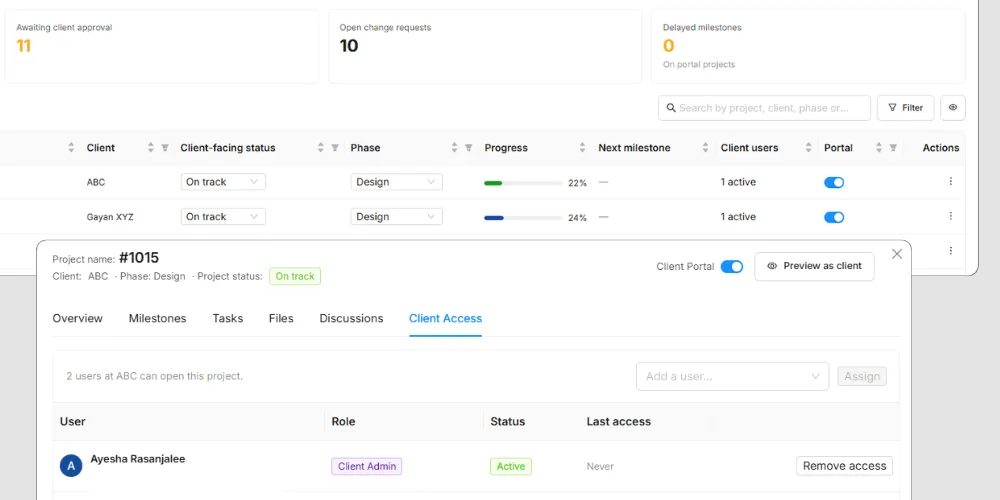
    A new Portal Projects module lists every workspace project and shows whether the portal is on for it. Each project workspace has Overview, Milestones, Tasks, Files, Discussions, and Client Access tabs.
    Portal Projects workspace
    How to use:
    1. Open Clients and select Portal Projects
    2. Open any project from the list
    3. Switch between the tabs to manage what the client can see and who has access
  • Approvals
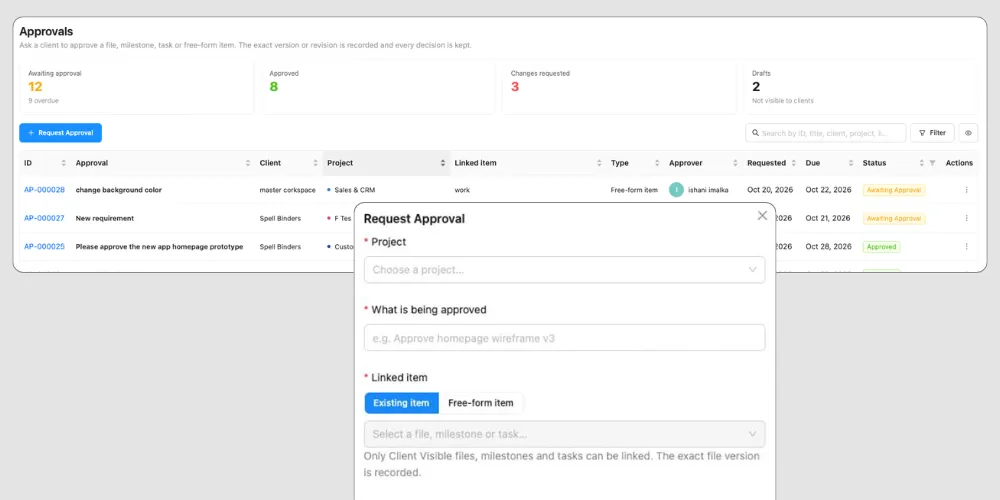
    Ask a client to approve a file, milestone, task, or free-form item. Each approval records the exact file version, names one client approver, and keeps a revision history.
    Approvals
    How to use:
    1. Open Approvals in the Clients area and create a new approval
    2. Link it to a Client Visible file, milestone, or task, or describe a free-form item
    3. Save it as a draft, then send it to the client approver
  • Change Requests
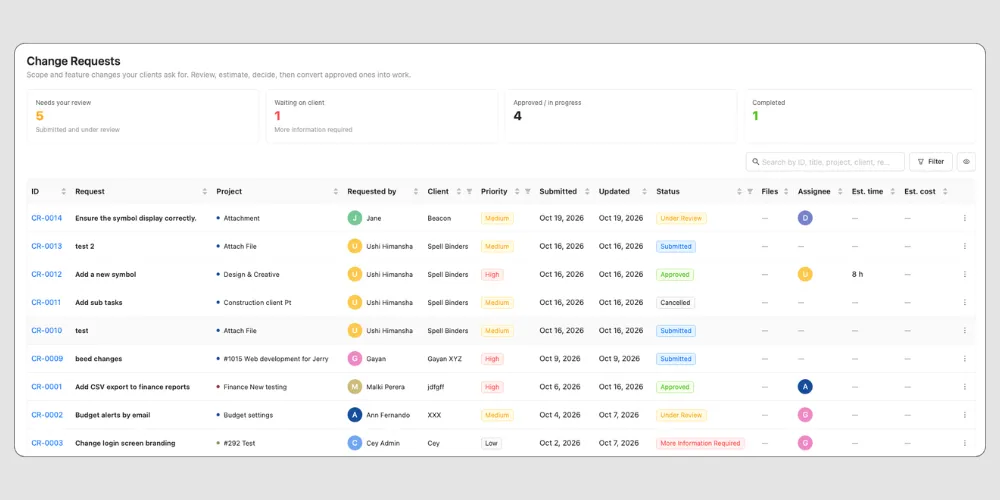
    Clients can ask for scope or feature changes inside a project. Staff review each request, ask for more information, estimate, approve or reject it, convert it to project work, and mark it complete.
    Change Requests
    How to use:
    1. Open Change Requests in the Clients area
    2. Select a request and move it through its statuses
    3. Convert an approved request to project work
  • Discussions
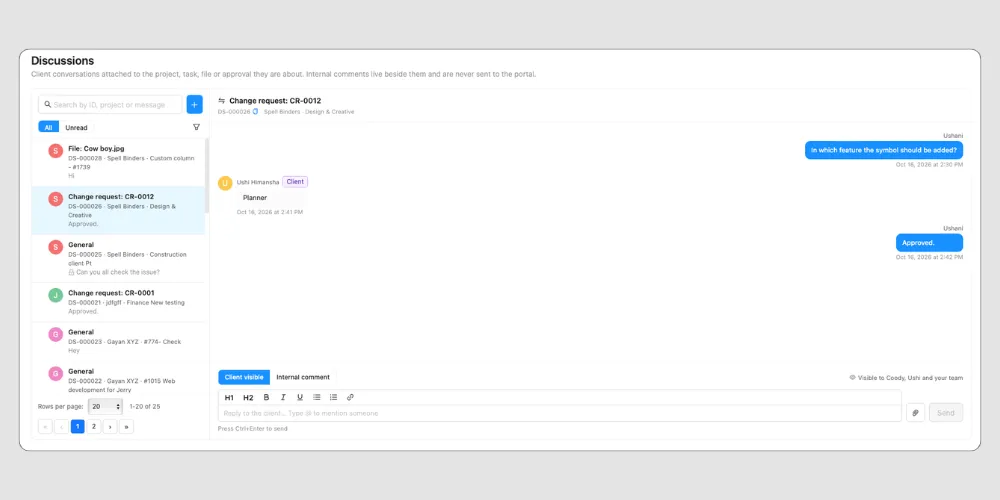
    Threads attach to the project, a Client Visible task, a Client Visible file, or an approval. Client-visible replies and internal comments stay strictly separated, and internal comments never reach the portal.
    Discussions
    How to use:
    1. Open a Portal Project and go to the Discussions tab
    2. Start a thread on the project, a task, a file, or an approval
    3. Post a client-visible reply or an internal comment
  • Milestones
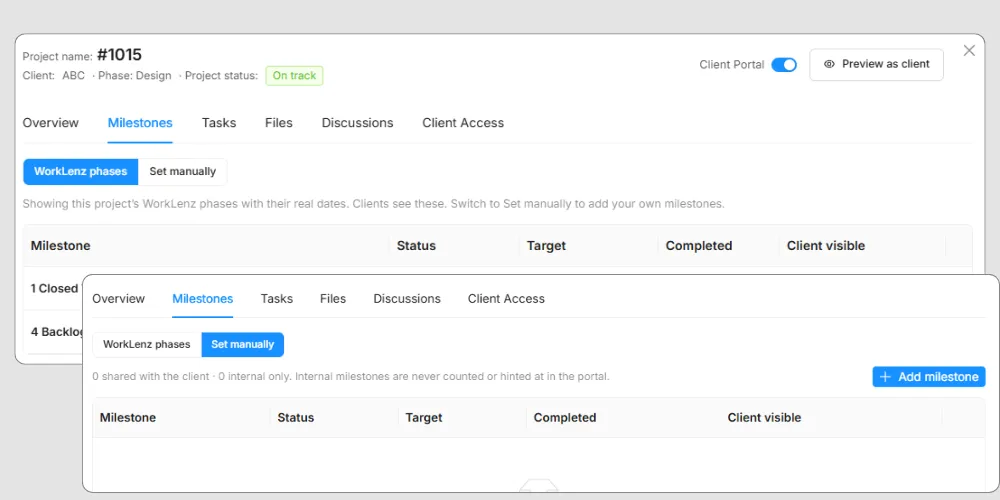
    Create business-level milestones for a project, set a target date and status, and decide per milestone whether the client sees it.
    Milestones
    How to use:
    1. Open a Portal Project and go to the Milestones tab
    2. Add a milestone with a target date and status
    3. Share it with the client when it is ready
  • Versioned project files
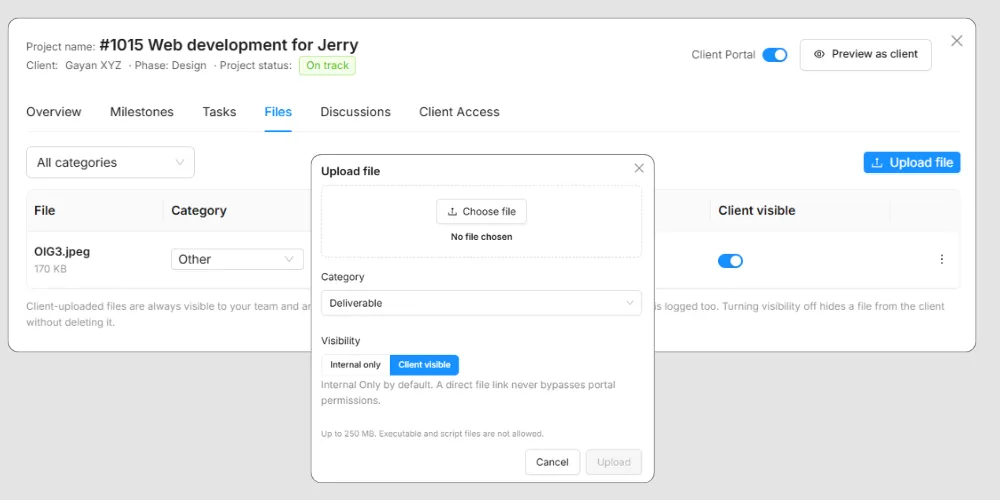
    Files are project-scoped, categorized, and versioned, with per-file visibility. Replace a file with a new version and see every version along with the approvals that point at it.
    Versioned project files
    How to use:
    1. Open a Portal Project and go to the Files tab
    2. Upload a file as Internal Only or Client Visible
    3. Upload a replacement to create a new version
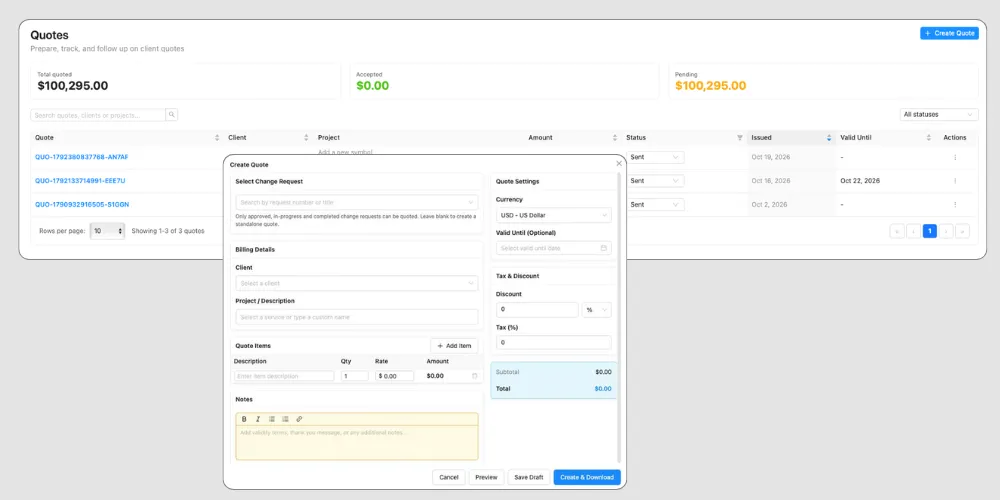
  • Quotes for clients
    Create and send estimates to clients with a Draft, Sent, Accepted, Declined, or Expired lifecycle and a Valid Until date. Quotes and Invoices now link to a Change Request.
    Quotes for clients
    How to use:
    1. Open Quotes in the Clients area
    2. Create a quote and set its Valid Until date
    3. Send it to the client and track its status
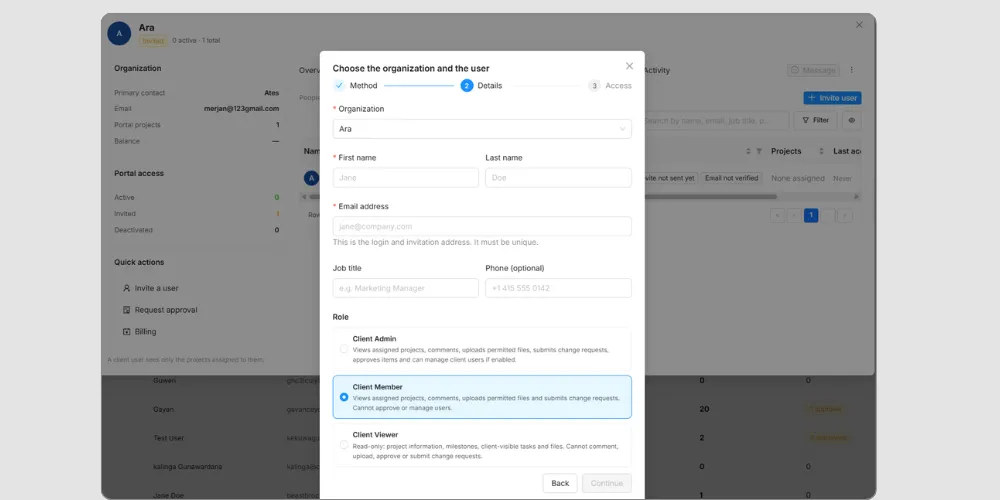
  • Three client roles and per-project access
    Client Admin, Client Member, and Client Viewer replace the earlier POC and Member roles and permission templates. Each user has one role plus per-project assignment.
    Three client roles and per-project access
    How to use:
    1. Open Clients and select a client
    2. Add a client user and choose a role
    3. Assign the user to the projects they should see
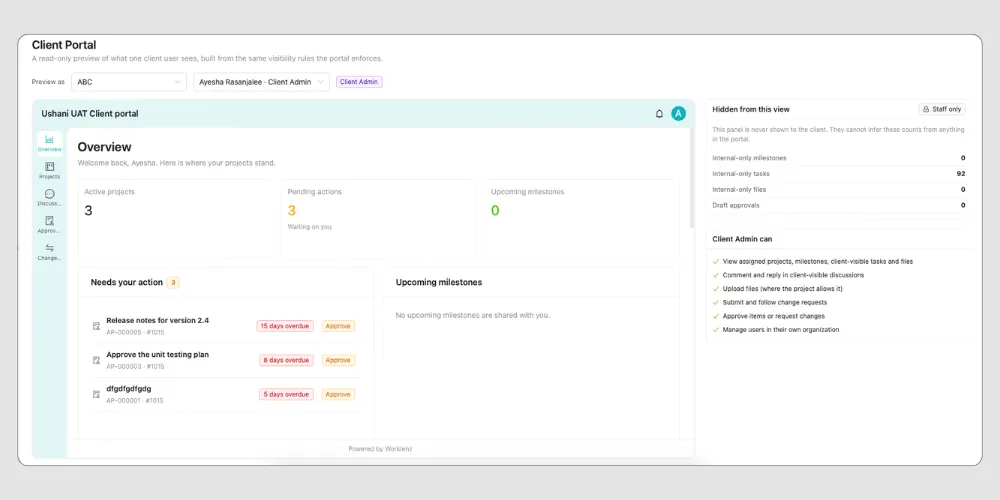
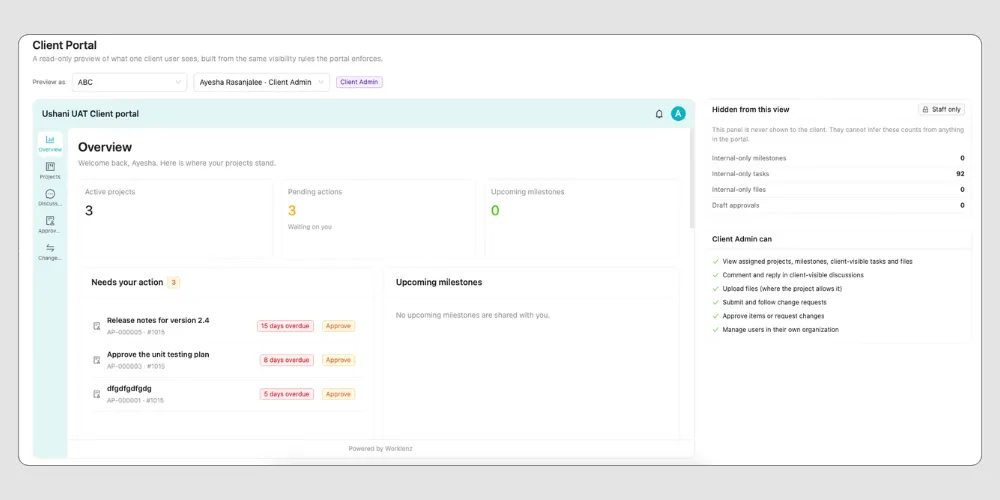
  • Client Portal preview
    The Client Portal screen is now a read-only preview of what one specific client user sees, next to a list of what is hidden from them.
    Client Portal preview
    How to use:
    1. Open Client Portal from the Clients area
    2. Pick a client user
    3. Browse the Dashboard, Projects, Approvals, and Change Requests as that user
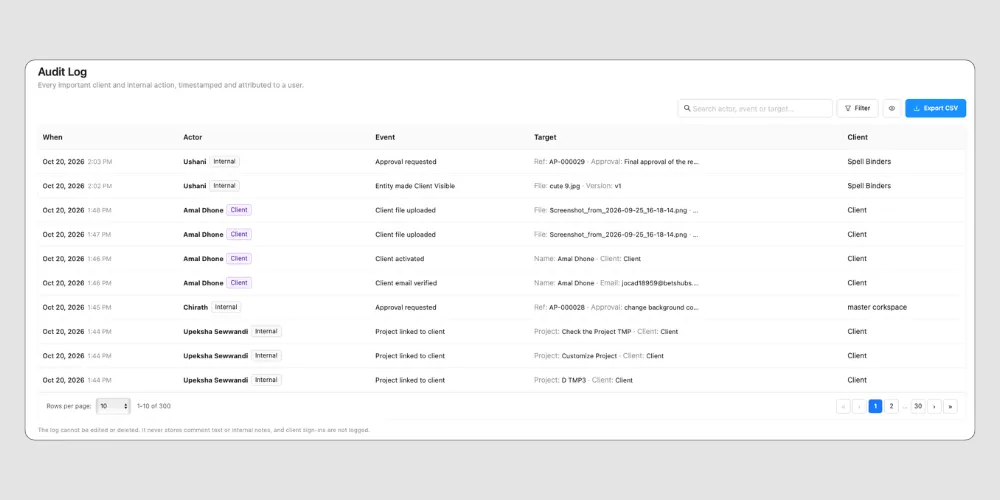
  • Client activity notifications and audit log
    A Client activity bell in the admin top bar lists client comments, approval decisions, change requests, and file uploads, and each item opens its source. A new Audit Log records who shared, approved, or changed access, with a per-client view.
    Client activity notifications and audit log
    How to use:
    1. Click the Client activity bell in the top bar
    2. Open an item to jump to the exact approval, comment, or request
    3. Open a Client Workspace to see that client's audit entries

Client Portal v2 (Client View)

  • New client dashboard and navigation
    Clients get one place to see project status, upcoming milestones, pending actions, files, discussions, approvals, and change requests. Navigation covers Dashboard, Projects, Approvals, Change Requests, Notifications, and Account, with Invoices when the operator turns it on.
    New client dashboard and navigation
    How to use:
    1. Sign in to the client portal and finish account setup
    2. Open the Dashboard to see what is waiting for you
    3. Open a project to see its Overview, Milestones, Tasks, Files, and Discussions tabs
  • Approve, request changes, and discuss from the portal
    Clients respond to approvals, submit change requests, and reply in discussions. What each client can do depends on their role.
    How to use:
    1. Open Approvals and select a pending item
    2. Approve it or request changes
    3. Open Change Requests or Discussions to follow up

Time Tracking

  • Role-based Time Entries with grouping and search
    Time Entries now shows more than your own log. Admins, Project Managers, Team Leads, and Members each see a defined slice of entries, with an All / My toggle, a Group by control (Member, Client, Project, Task), an optional Description field, and search across task name, task ID, and description.
    How to use:
    1. Open Projects and click Time Entries
    2. Use the All / My toggle and Group by to change the view
    3. Type in the search box to find entries by task or description
  • CSV export for Time Entries
    Export time log entries to a CSV file for analysis and records outside Worklenz.
    How to use:
    1. Open Projects and click Time Entries
    2. Click Export
    3. Open the downloaded CSV file

Task List

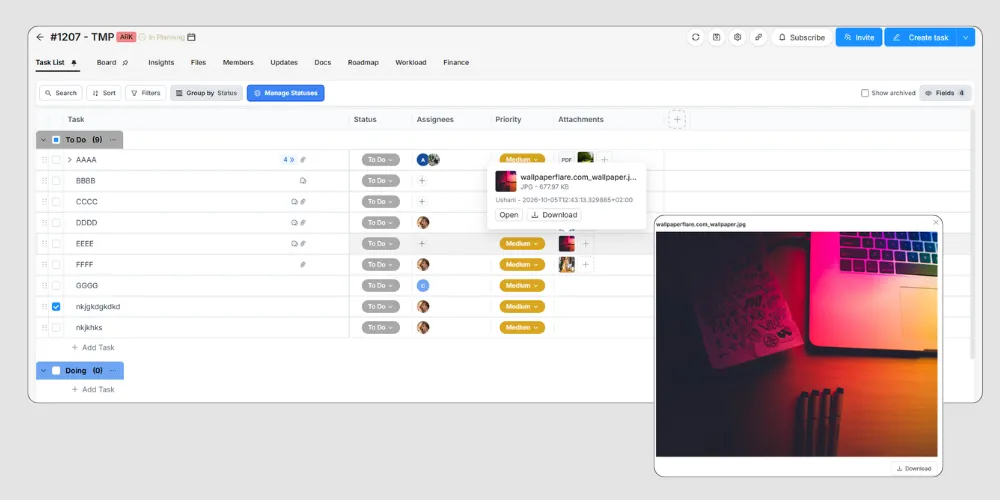
  • Attachments column
    See image thumbnails and file chips for each task without opening the drawer. Hover for a preview with a Download button, or drop a file onto the cell to upload.
    Attachments column
    How to use:
    1. Open a project's task list and click Fields
    2. Turn on Attachments
    3. Hover a cell to preview, or drag a file onto it to upload
  • Latest Comment column
    Shows the text of the most recent comment on each task so you can scan activity without opening tasks one by one.
    How to use:
    1. Open a project's task list and click Fields
    2. Turn on Latest Comment
  • Task List filters
    The same Priority, Status, Phase, Members, and Labels filters from Reports > Tasks now sit under a single Filter button in the Task List.
    How to use:
    1. Open a project's task list
    2. Click Filter
    3. Pick one or more options to narrow the list
  • Import tasks from CSV into an existing project
    The Create Task dropdown now includes an Import Tasks from CSV option on Business plans, so CSV import is no longer limited to the Create Project popup.
    How to use:
    1. Open an existing project and open the Create Task dropdown
    2. Choose Import Tasks from CSV
    3. Upload your file and map the columns

Task Drawer

  • Paste attachments into the task drawer
    Copy an attachment and paste it into the task drawer. It uploads and attaches to the task.
    How to use:
    1. Open a task drawer
    2. Copy a file or image
    3. Paste it into the drawer

Roadmap

  • Create dependencies from the task card
    Hover a task card on the Roadmap to reveal drag handles on its left and right sides. Drag from a handle to another card to create a finish-to-start dependency, and see dependencies from other views as connecting lines.
    How to use:
    1. Open a project's Roadmap
    2. Hover a task card and drag from a handle to another task card
    3. Check the line that connects the two cards

Home

  • Pin tasks in Today's Priorities
    Pin the tasks that matter most to you so they stay on top regardless of due date or project. A new Pinned tab collects them.
    How to use:
    1. Open Home and go to Today's Priorities
    2. Hover a task row and click the pin icon
    3. Open the Pinned tab to see your pinned tasks

Projects

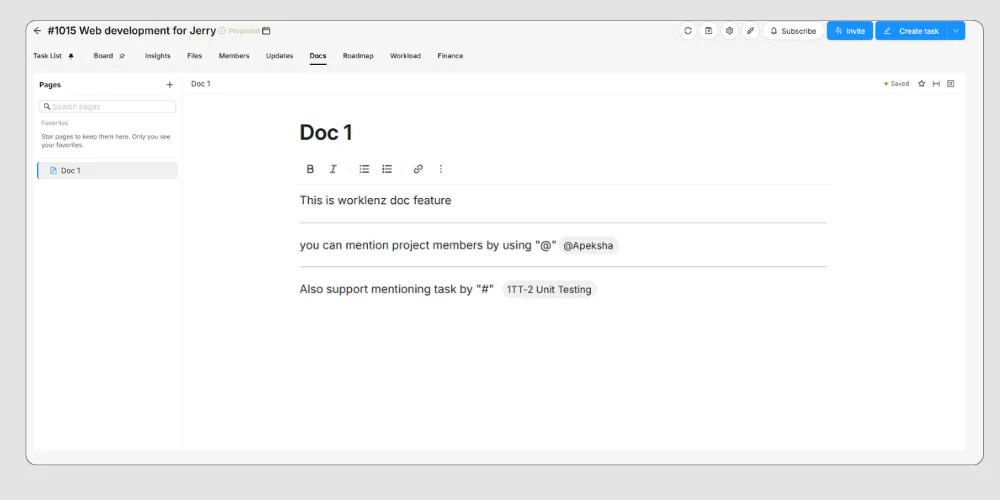
  • Project Docs
    Create docs inside a project and keep notes, plans, and decisions next to the work. Mention team members with @, link tasks with #, and add blocks with /.
    Project Docs
    How to use:
    1. Open a project and click Docs in the project navigation bar, between Updates and Roadmap
    2. Create a new doc and start writing
    3. Type / to insert blocks, @ to mention a member, and # to link a task
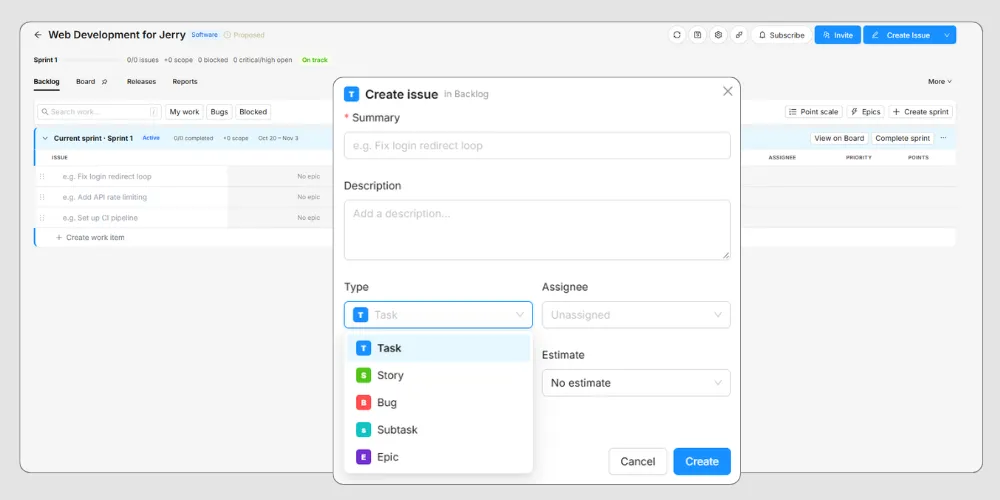
  • Software project type
    Software projects use developer terminology: Task becomes Issue, Task List becomes Backlog, and Phase becomes Sprint. They default to grouping by Status and come with software-friendly statuses.
    Software project type
    How to use:
    1. Click Create Project
    2. Choose the Software project type
    3. Open the project to see the Backlog and Sprints
  • Member task visibility setting
    Choose whether project members see all tasks or only the tasks assigned to them, useful for agency projects that need member privacy.
    How to use:
    1. Open Project Settings > Advanced
    2. Switch the task visibility option for members

Reports

  • Portfolio progress view
    See every project's percent complete, blocked task count, and Delivery Confidence side by side. Delivery Confidence is a Green, Amber, or Red indicator set by the project Owner or Team Lead.
    How to use:
    1. Open the Portfolio view
    2. Compare projects by percent complete, blocked tasks, and Delivery Confidence
    3. As a project Owner or Team Lead, set a project's Delivery Confidence

Members & Permissions

  • Restrict task creation and assignment by role
    Business plan workspaces can limit task creation and assignment to Admins and Team Leads, while Members keep view access to their assigned tasks. Set it per project or for the whole organization.
    How to use:
    1. For one project, open Project Settings > Advanced and turn on the restriction
    2. For the whole organization, open Settings > Configuration and turn it on
  • Project-scoped Project Manager permissions
    A Member who is made Project Manager on a project gets Project Manager access on that project only. Authorized non-admins can also create projects from templates without seeing financial data.
    How to use:
    1. Open a project and assign a Member as Project Manager
    2. Sign in as that member and confirm they can manage that project but remain a Member elsewhere

Admin Center

  • Workspace Audit Log
    A workspace-wide trail of admin actions, permission changes, and access events, so admins can answer who changed a permission or who exported data.
    How to use:
    1. Open Admin Center > Security > Audit Log
    2. Review the recorded events

Settings

  • Help tab
    Settings has a new Help tab with documentation, release notes, community links, the privacy policy, and version info in one place.
    How to use:
    1. Open Settings
    2. Click the Help tab
  • Polish and French languages
    Worklenz is now available in Polish and French.
    How to use:
    1. Open your profile settings
    2. Choose Polski or Français as the language

✨ Improvements

Time Tracking

  • The Time Log page now has the Project and Practice filters used elsewhere in Worklenz
  • The Time Log report's Member filter now has a search field and supports selecting multiple members, plus a Practice filter
  • Time log dates are limited to the project's start and end dates

Task List

  • The task name column can now be widened beyond 400px
  • Task description links are now clickable
  • The task name stays pinned at the top of the task drawer while you scroll
  • The refresh icon now looks the same on Task List and Planner > Schedule

Planner

  • Time off and holidays now reduce capacity in Planner > Schedule and Planner > Workload

Projects

  • Projects created from a template now keep the full project and task configuration, including timer fields, rate cards, assignees, date settings, and recurrence
  • Assignees can now be saved to a project template
  • The Category dropdown is shorter and scrolls when there are many categories

Members & Permissions

  • The project Members list now sorts by role by default: Admins, then Team Leads, then Members
  • The Members table replaces the Remove button with a More Options (⋮) menu that includes Remove from Project, matching Settings > Team Members
  • Switching from an invited team to your own team no longer shows the Organization Setup popup

Reports

  • Reports > Tasks has a Label filter
  • The Status and Phase filters have a search field
  • The Member column on Reports > Members can be sorted A to Z or Z to A
  • Reports > Projects and Reports > Tasks use an eye icon in place of the "Show" text

UI & Display

  • Pagination now offers the same 10, 20, 50, and 100 page sizes across pages
  • The Practices page now has pagination

🐞 Fixes

  • Fixed the Slack configuration popup showing the project ID instead of the project name
  • Fixed assigning a 6th member to a task unassigning an existing member
  • Fixed the Invite button overflowing the popup for long email addresses
  • Fixed the team name appearing in the "What's New" release notification
  • Fixed no warning appearing when starting a new timer session while another is running
  • Fixed hardcoded text and incorrect UI in the Project Invite popup
  • Fixed Project Member Access column text being hard to read in dark mode
  • Fixed newly added status colors displaying incorrectly in dark mode
  • Fixed "Team Leader" not being translated
  • Fixed the status color not updating in the task drawer dropdown
  • Fixed a removed member's tasks staying assigned until a refresh
  • Fixed the Project Drawer client dropdown not listing all clients
  • Fixed task status falling out of sync between Finance and the Task List
  • Fixed an "Access Denied" error for Admins and Owners in task reports
  • Fixed deleted tasks not disappearing in real time
  • Fixed being unable to delete a category that has assigned projects
  • Fixed Workload and Roadmap data not updating in real time
  • Fixed the project Deadline section not loading data
  • Fixed task IDs importing as dates from CSV
  • Fixed the comment reaction tooltip being cut off
  • Fixed layout issues in the comment edit popup
  • Fixed the Delete Account option showing for Free plan users
  • Fixed inconsistent time logging formats across the app
  • Fixed the Create Project popup keeping "Continue to CSV import" after switching sections
  • Fixed the "Read About Mapping Statuses" link opening the Worklenz blog
  • Fixed guest view giving access to the homepage and project sidebar features
  • Fixed team members disappearing and guests appearing twice in the file upload dropdown
  • Fixed being unable to sign in with email and password after using Google Sign-In
  • Fixed layout problems on small screens
  • Fixed Auto-Assign Parent Phase to Subtasks not applying to existing subtasks or to phases assigned after the subtask was created
  • Fixed task drawer comments not updating in real time
  • Fixed Members being able to create projects through project templates
  • Fixed Members being able to open the Add Client function
  • Fixed an error when saving the country in Admin Center
  • Fixed statuses appearing in the wrong order in the task drawer
  • Fixed the Roadmap timeline not updating after task dates are removed
  • Fixed task drawer options that Members should not see
  • Fixed duplicate scrollbars in the Team Switch and Project Manager assignee dropdowns
  • Fixed the team hover state in the Team Switch dropdown
  • Fixed an unnecessary progress bar below subtasks in the task drawer
  • Fixed an invited member being unable to accept an invitation after logging out of a previous account
  • Fixed invited guests appearing on the Team Members page
  • Fixed an error when saving and previewing project templates
  • Fixed duplicate success messages when saving project templates
  • Fixed Project Managers being unable to create custom columns
  • Fixed custom column names being cut off
  • Fixed the Category dropdown popup being too large
  • Fixed project start and end dates not saving in Reports
  • Fixed missing spacing in the Task by Status pie chart tooltip in Reports
  • Fixed category tags showing the wrong colors in Project Details
  • Fixed the missing Status button border in light mode
  • Fixed a team member not being deleted despite a success message
  • Fixed dropdown scrollbars showing the wrong color or being invisible in light and dark modes
  • Fixed the Project dropdown missing from Quick Time Entry
  • Fixed the sidebar reorder icon being hard to see
  • Fixed the Status column not updating in Project Insights
  • Fixed the survey appearing after joining through an invitation
  • Fixed some label text being unreadable in light and dark modes
  • Fixed Revenue and Profit Trend chart values being hard to read in dark mode
  • Fixed backlog tasks not appearing in Board view until a refresh
  • Fixed issue type text appearing outside the grid
  • Fixed the Today button not working in Task List > Roadmap
  • Fixed all epic names showing in purple
  • Fixed blocked work items not appearing after clicking Blocked
  • Fixed text misalignment in the My Progress widget
  • Fixed the drag-and-drop icon not aligning to the right side of the widget
  • Fixed the Billable column header being hard to read at some screen sizes on Home > Log Time
  • Fixed the missing sort cancel option in the Recently Logged table
  • Fixed an "Unknown Error" when deleting clients